
NotebookLM has been renamed and is now called Gemini Notebook, available at notebook.google.com. The principle has not changed. You upload your documents, and the AI answers from those documents. Unlike a general-purpose chatbot, it ties its statements to passages in your own files, which you open with a click.
A notebook is a working folder, and the documents you put in it are its sources. Access is free, with no installation, using a personal Google account.
Before you start, what you can upload
This is a consumer AI tool, for which UNIL provides neither an account nor support.
Upload only what you would be willing to publish on the web, meaning public documents, open-access publications, and texts you wrote yourself.
Excluded, therefore, are personal and sensitive data, anything covered by official secrecy, and any proprietary content such as licensed scholarly articles, exam questions, unpublished manuscripts and the like. Do not link your UNIL email address or your UNIL OneDrive folder to this tool, and never connect a work Drive, which holds documents covered by official secrecy.
If in doubt, AI_GO tells you whether a document may be uploaded. If the answer is no, your internal documents belong in UNIL Copilot with the 📘 [Sécurisé] agent, and your sensitive data in an AI installed on your own machine.
Step by step, on a real case
The example uses four public directives issued by the UNIL Executive Board on doctoral studies, namely 1.31 on SNSF funding, 3.10 on thesis submission, 4.2 on scientific integrity and 4.6 on publication deposit. They can be downloaded freely from the UNIL website. The screenshots show the interface in French, the language of those documents, and the labels are quoted as they appear there.
- Create a notebook with the black “+ Créer” button, top right.
- Add your sources by dragging them into the window, or through “Importer des fichiers”, “Sites Web” and “Texte copié”. PDF, Word, PowerPoint, CSV, images, audio and more are accepted. Prefer a fixed PDF, because an imported web page brings in every visible piece of text, navigation menus included.
- Ask your questions in the middle panel. A summary of your documents is written there as soon as the import finishes.
- Generate an output from the Studio panel, on the right. Click a tile, then describe what you want in plain language. Nine formats rework your documents, to read, to watch or to listen to, namely reports, flashcards, quiz, data table, mind map, slide deck, infographic, video overview and audio overview.
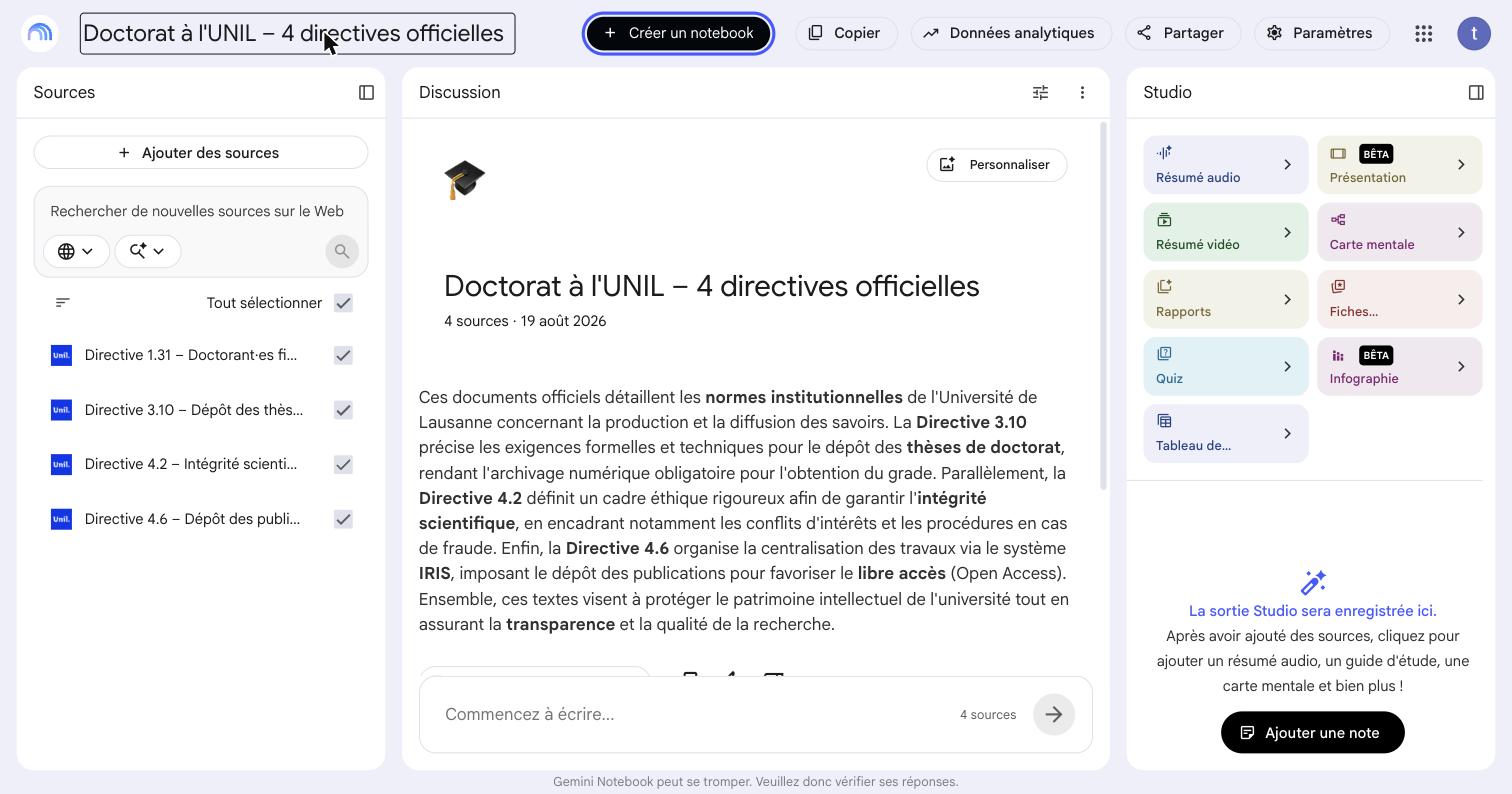
A question put to those four directives: “I am submitting my thesis in three months. Summarise my obligations in chronological order, covering thesis submission, publication deposit and the integrity rules I must follow. Name the relevant directive each time.”
The answer draws on all four documents and places numbered markers in the text. Clicking a marker opens the passage the statement comes from, with the document name and an “Afficher la source” link. That click turns an AI answer into verifiable information. Some sentences carry no marker at all, and those are precisely the ones to check yourself.
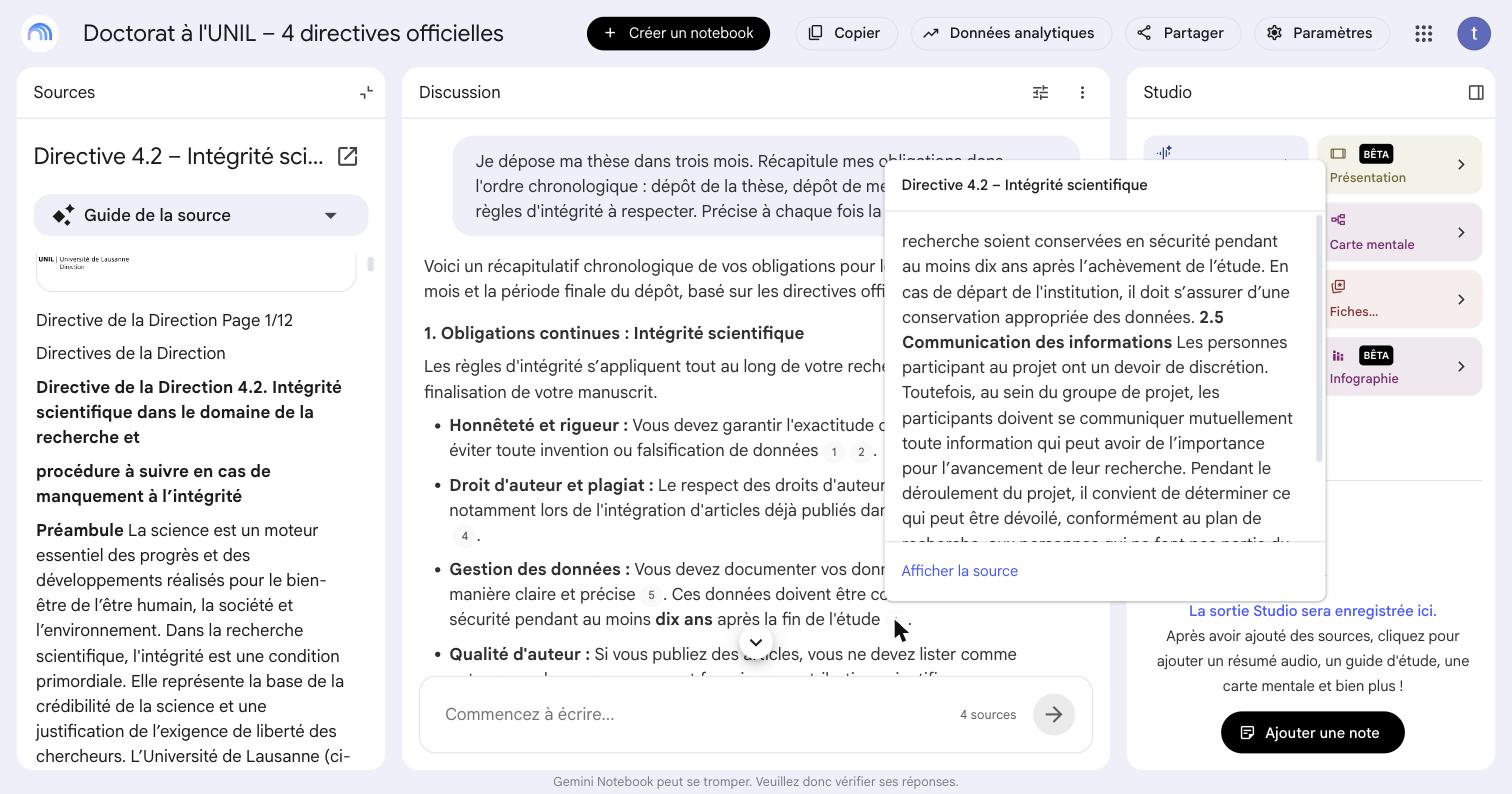
The citation guarantees provenance, not truth. You remain responsible for your sources. Read every output before circulating it.
Four examples, depending on your role
Teaching staff
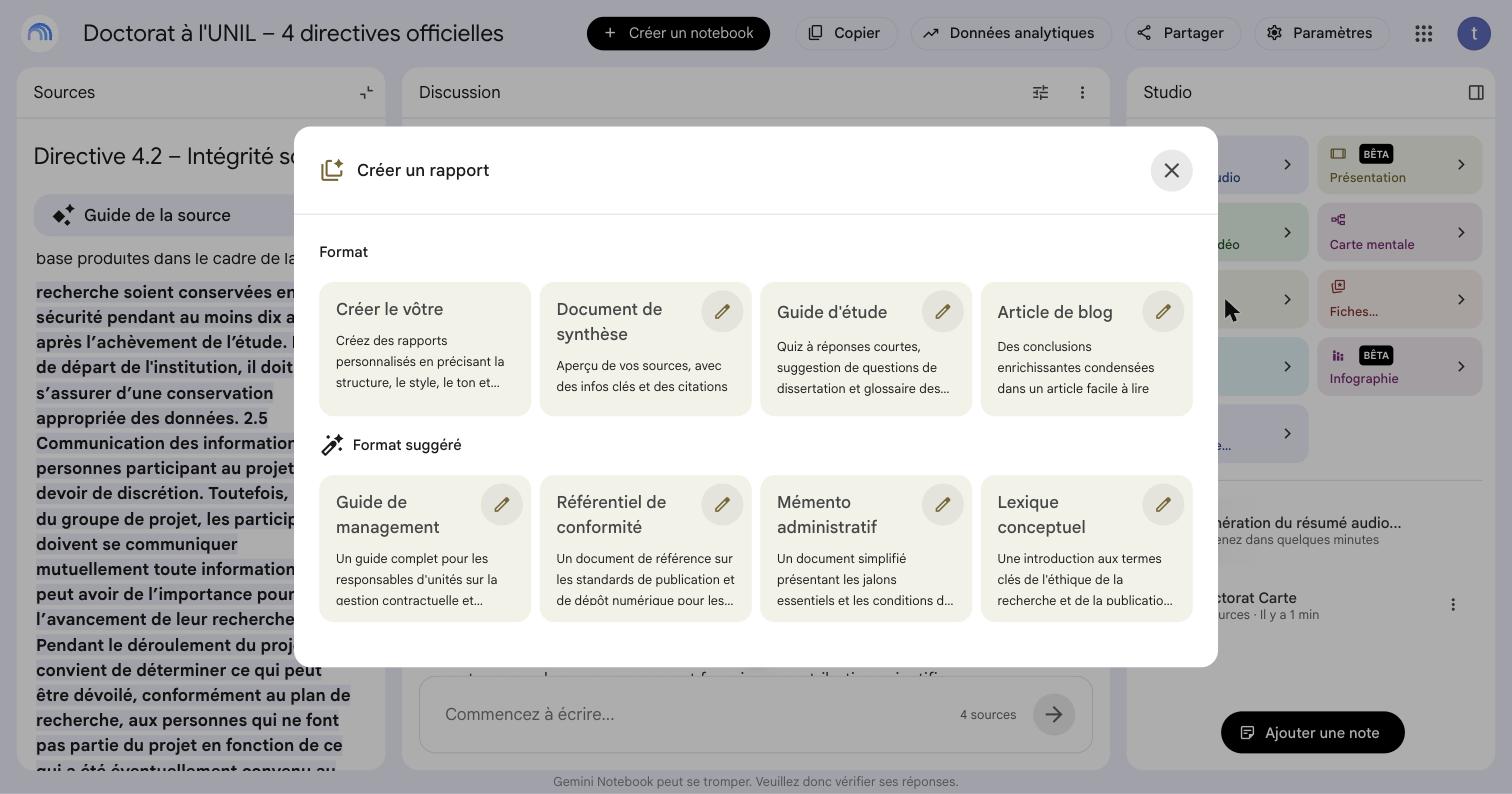
From your reading list, upload only what you have the right to share. Generate flashcards and a quiz from it. The Fiches and Quiz tiles open a window whose field, “Quel est le thème ?”, expects the topic to cover.
“The key notions in these texts, with definitions, criteria and borderline cases.”
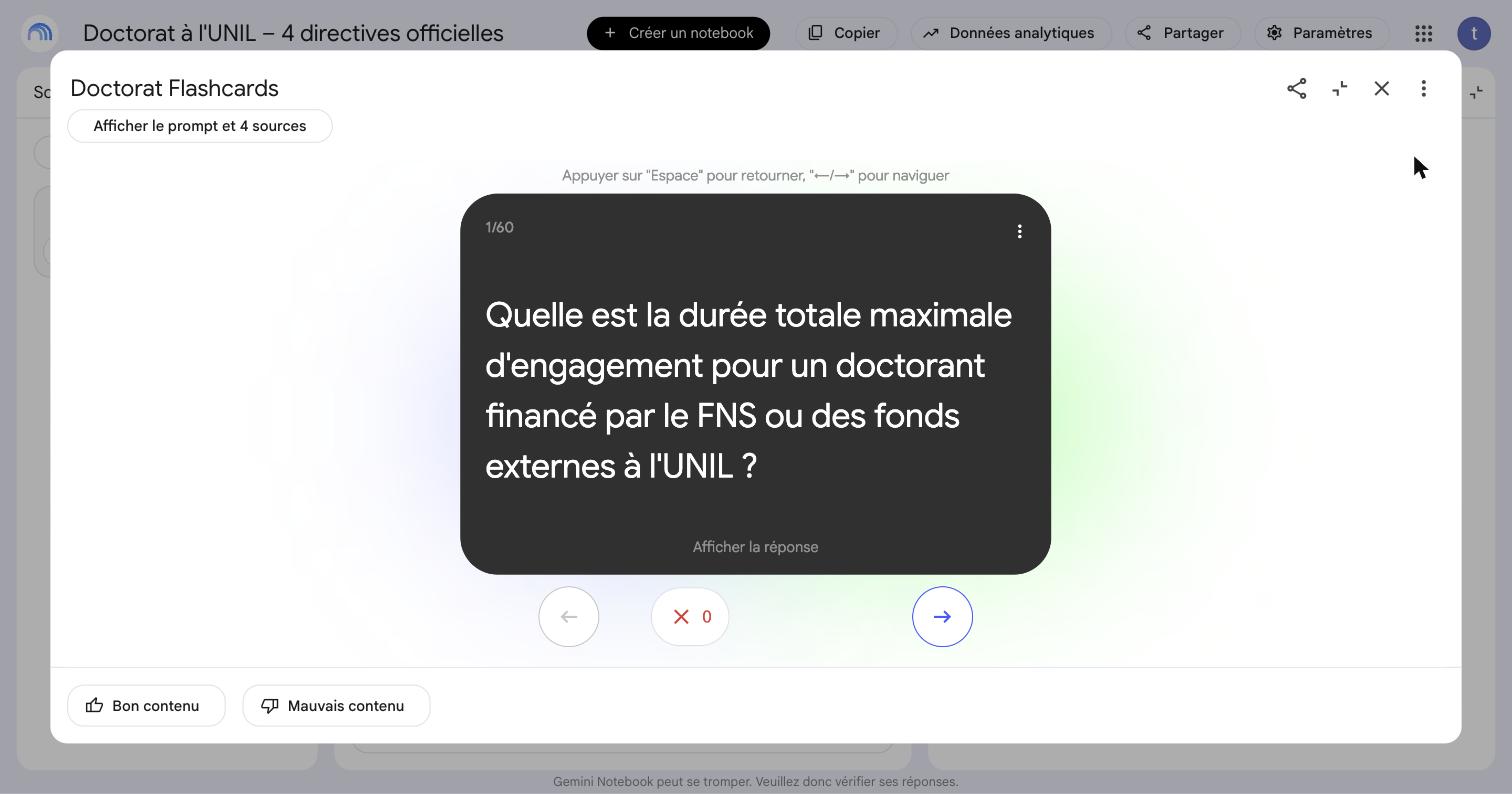
The sixty cards drawn from the four directives run full screen, enough to revise a notion at the end of a class.
Researchers and doctoral candidates
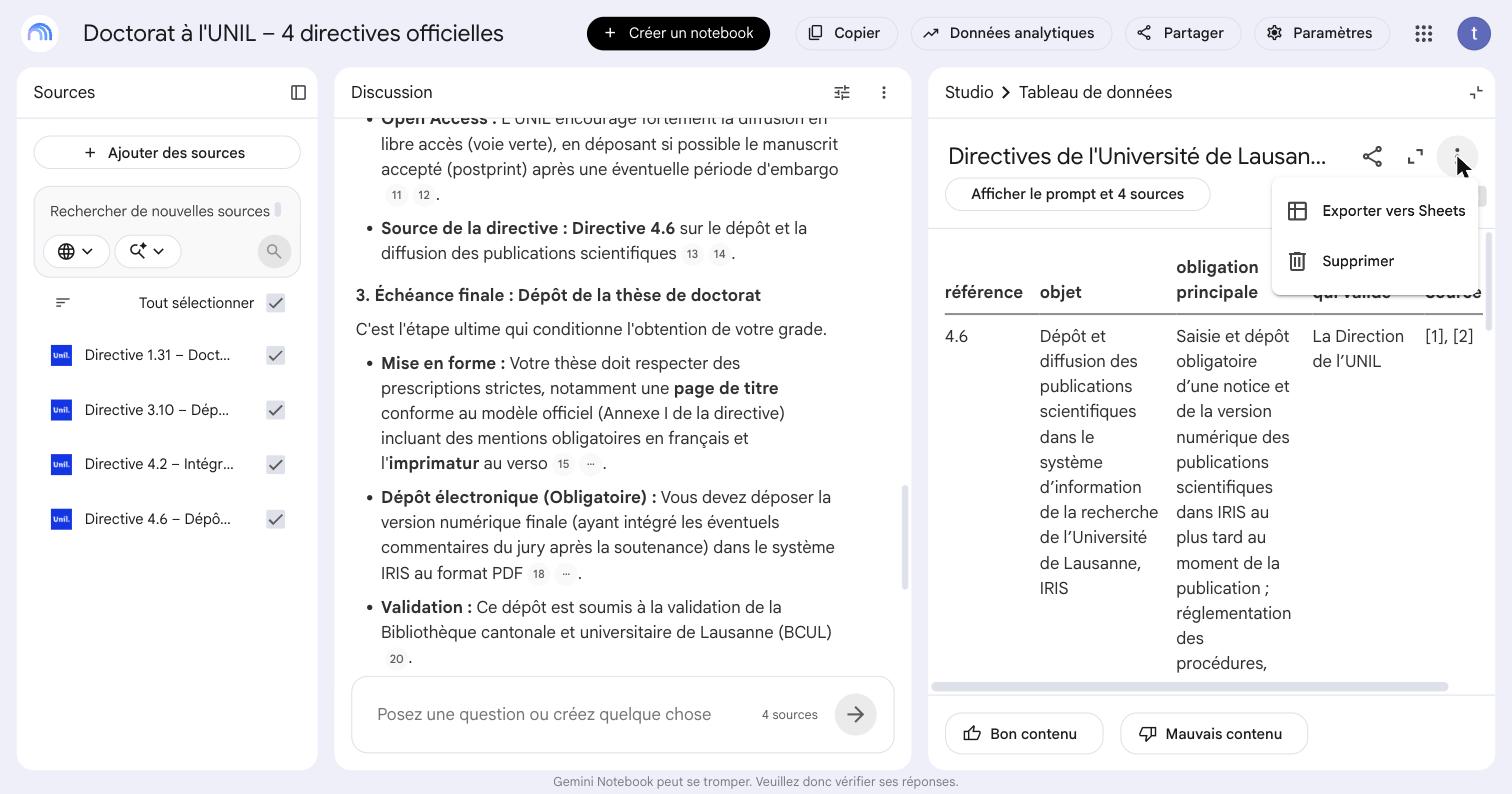
Only open-access articles under an open licence may be uploaded. Neither UNIL’s subscription nor a deposit in IRIS is enough. On such a corpus, the data table builds a literature review matrix. Untick the articles that are off topic, then list your columns in the prompt. The table reproduces exactly those columns, plus a Source column carrying the citation numbers, and its menu offers “Exporter vers Sheets”.
“One row per article, with columns for reference, research question, method, data, main findings and acknowledged limitations.”
Administrative and technical staff
Minutes and personal files stay out, but the permitted ground is wide, covering directives and regulations published by UNIL, cantonal legislation and the public documentation of the tools you administer. Gather the ones that concern your service and question them. Such texts can be imported through “Sites Web” when they exist only online.
“What are the steps, in order, and who approves what? Give the directive and the article for each step.”
Students
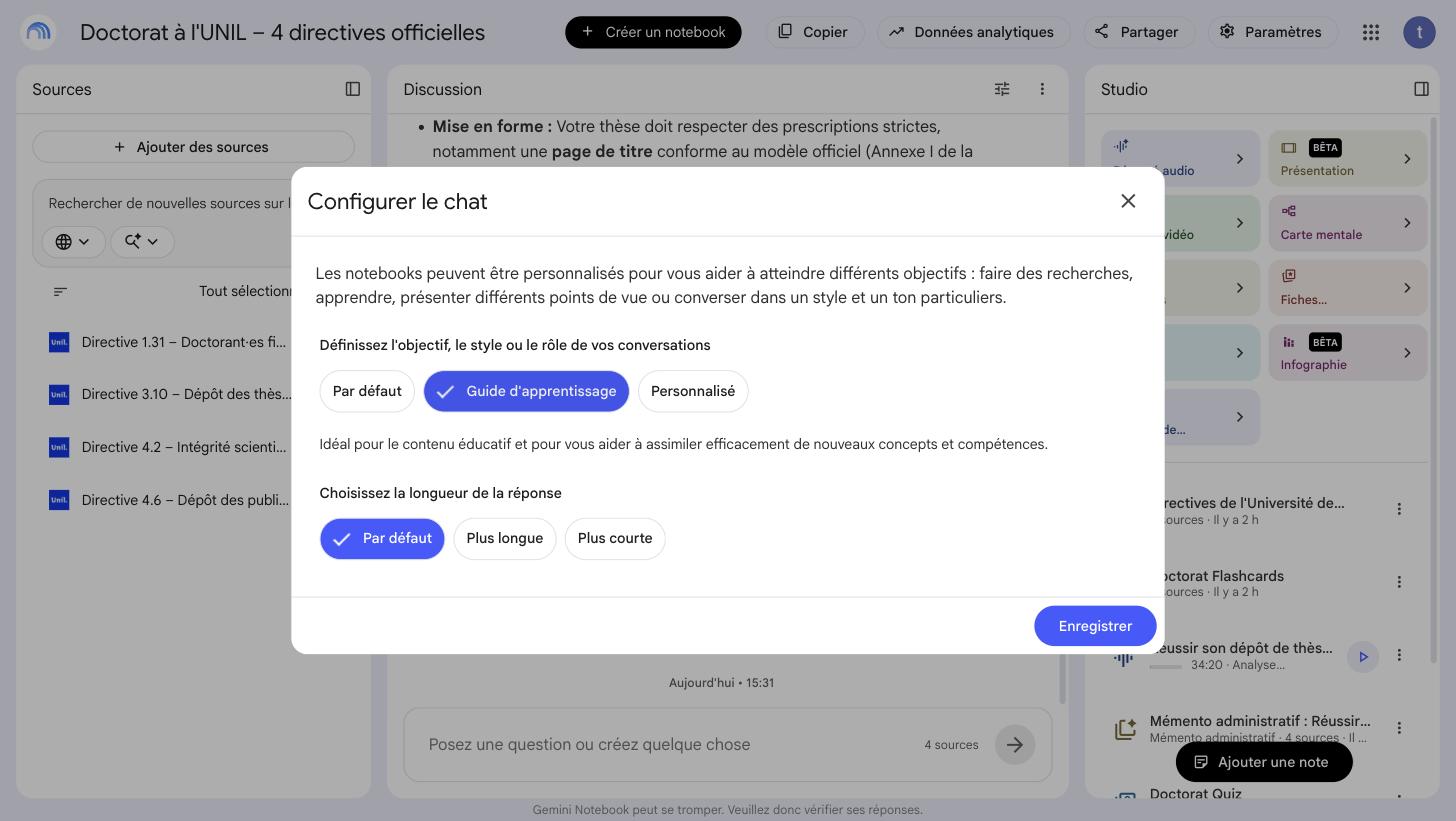
Upload your notes and the public readings for the semester, then listen to the audio overview or revise with the mind map. Going through the same documents as sound or as a map opens a second way in, useful to anyone who remembers better by ear. In “Configurer le chat”, turn on the Guide d’apprentissage mode, described on screen as ideal for educational content and for helping you take in new concepts and skills, then ask the chat to test you.
“Test me on this chapter. Ask one question at a time, wait for my answer, correct me and point out what I have not understood.”
A few pointers
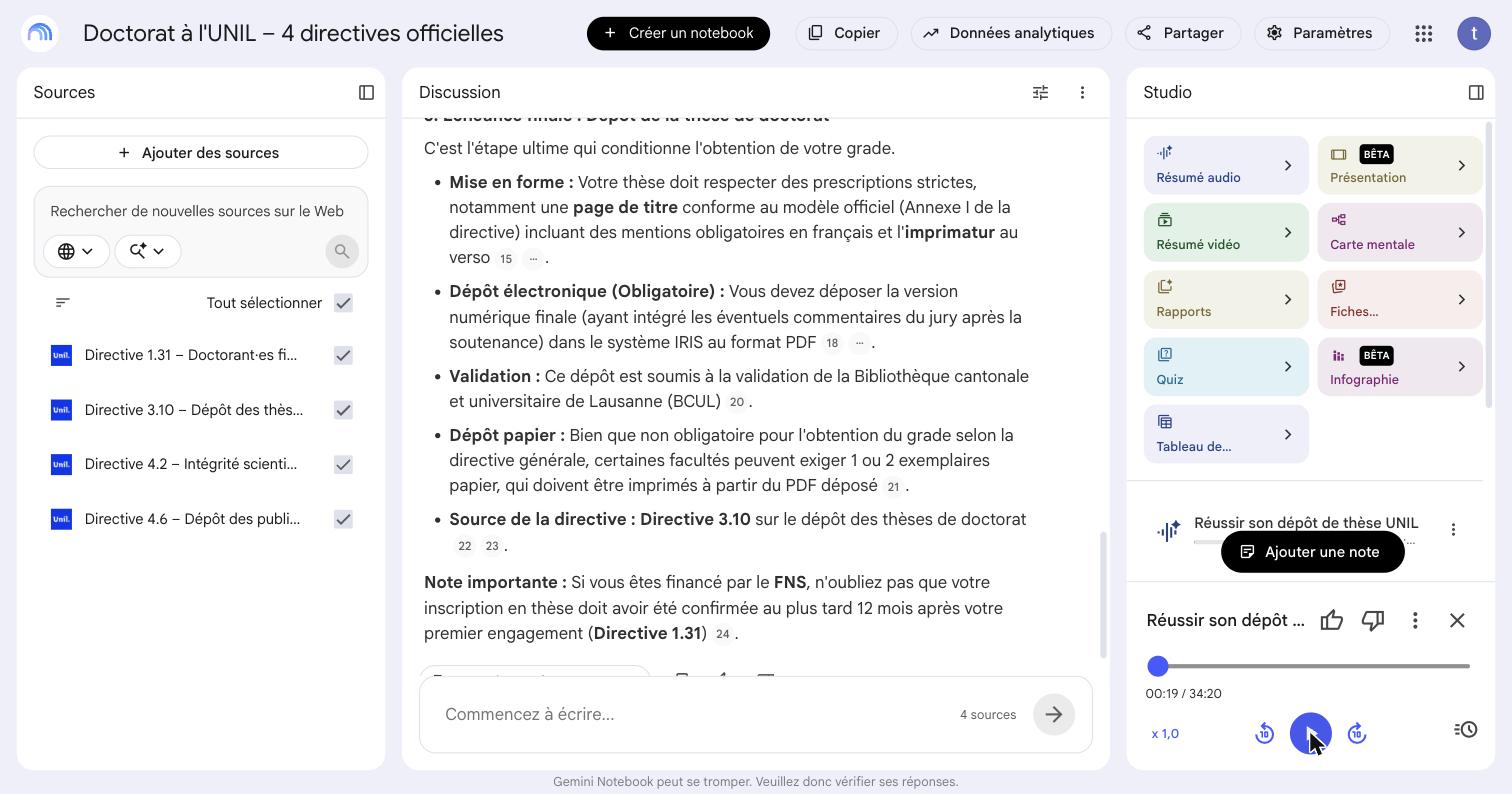
Expect several minutes of processing for an audio overview, and around thirty minutes of listening. For a shorter version, “Personnaliser le résumé audio” offers the setting Longueur : Court, and the language of the episode is chosen next to it. Released on their own, audio or video shut out people who are deaf or hard of hearing. Always pair them with a report.
Finally, under “Paramètres”, “Langue de sortie” offers 80 languages, enough to have a French document explained in another one, useful to colleagues and students who work in another language.