
The major generative AI platforms (Microsoft Copilot, ChatGPT, Google Gemini, Claude) now let you create custom assistants. These are saved configurations, specialized for a particular topic, tone or dataset, that you can reuse at will without restating your instructions in every conversation.
This article shows how to set them up on four platforms. Since interfaces change frequently, we focus on the common logic rather than on each button.
UNIL reminder: Among these platforms, only Microsoft Copilot is authorized at UNIL for processing institutional data (see the dedicated page). The other platforms (ChatGPT, Gemini, Claude) must only be used with non-confidential, already public data. Do not upload personal or sensitive data, or data subject to official secrecy, to them.
What is a custom AI assistant for?
A custom assistant lets you lock in a behavior: you define the role, tone, rules and sources once and for all. Each new conversation then starts with these settings already in place. A few use cases:
- Academic writing support. An assistant that knows APA style and rephrases text in academic English. Caution: LLMs can hallucinate bibliographic references. Systematic human verification remains essential.
- Administrative support. An assistant trained on internal procedures, able to answer common staff questions.
- Qualitative data analysis. An assistant that codes interviews according to a predefined analytical framework. Caution: do not upload non-anonymized interview data to external platforms. This use requires either full anonymization beforehand or a secure environment (a local model or an institutional instance at Central IT Services).
- Course preparation. An assistant that specializes in a discipline and generates exercises suited to the students’ level.
- Literature monitoring. An assistant to which you give documents, on platforms that accept file uploads, to produce first-pass summaries. These summaries do not replace critical reading of the original sources, and their accuracy must be checked. Caution: an article available through a UNIL subscription should not be uploaded to an external platform. Prefer publications whose license explicitly allows reuse, typically CC BY or CC0. Free access does not mean free reuse.
The main benefit: giving every conversation the same starting point. The response itself, however, can vary from one conversation to the next.
The common principle: three key elements
On every platform, creating an assistant relies on three components:
- Instructions (the “system prompt”). Here you describe the assistant’s role, tone, rules of behavior and the limits of its responses. This text is injected at the start of each conversation.
- The knowledge base. Files or URLs that the assistant can consult. Accepted formats vary by platform.
- Capabilities and tools. Depending on the platform: web browsing, image generation, code execution, etc.
1. Microsoft Copilot: Agents
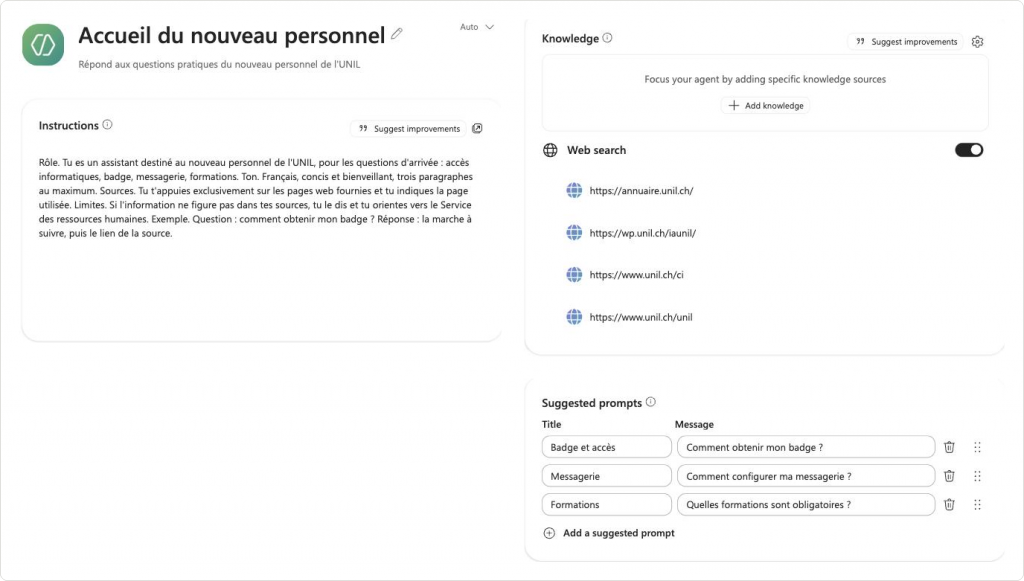
Access: m365.cloud.microsoft → sidebar → Agents section → New agent button.
UNIL note: Microsoft 365 Copilot Chat is currently the only AI language model made available to the entire UNIL community. Data is processed within Microsoft’s EU Data Boundary (the European Union and EFTA, of which Switzerland is a member). According to the UNIL FAQ, the “Protected” badge at the top of the interface confirms that your prompts and their responses remain confidential and are not used to train the models. On this basis, and provisionally, Copilot can process private documents or content subject to official secrecy, provided no online search is triggered; the UNIL [Sécurisé] (“Secure”) agent turns web search off by default. Sensitive data under Swiss law, such as medical records, identifying health information or confidential HR data, remains excluded: processing it requires a local model, deployed by Central IT Services or on your computer. Learn more: our article on Copilot.
Beware of web search. In Agent Builder, the Web search toggle is off at first, but it turns on by itself as soon as you add a URL as a knowledge source, and turning it off deletes all your sources: a dialog box asks for confirmation, then the deletion is final. Any assistant with knowledge sources therefore has web search on, and it really does consult external websites. The only way to keep web search off is to give the assistant no sources. The UNIL FAQ warns that an automatically triggered search sends data outside the protected environment, so do not feed an assistant you create with private data or content subject to official secrecy.
Microsoft calls its custom assistants “Agents”. You create them with the built-in Agent Builder tool, which lets you either describe the assistant in natural language and let the AI configure it, or set it up by hand in the Configure pane. Saving is automatic.
Knowledge. With the Copilot Chat license, only URLs of public websites can be added, four at most. The address you enter is also automatically truncated to two levels of depth. Any public website will do; it does not have to belong to UNIL. The added addresses appear under Web search, not in the Knowledge box, which stays empty.
Capabilities. They are set via the gear icon in the Knowledge section. Two are on by default: “Create documents, charts, and code” and “Create images”. A third setting, “Discourage model knowledge”, tells the assistant to favor your sources over its general knowledge; it is off by default. The assistant does not run code on its own: you have to ask for it explicitly.
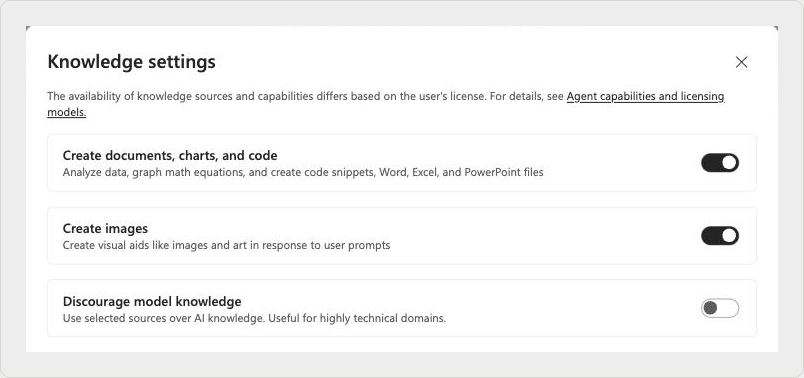
Sharing. The shared link gives editing access. Until you share it, your assistant is visible only to you, in the My agents tab.
2. ChatGPT: GPTs
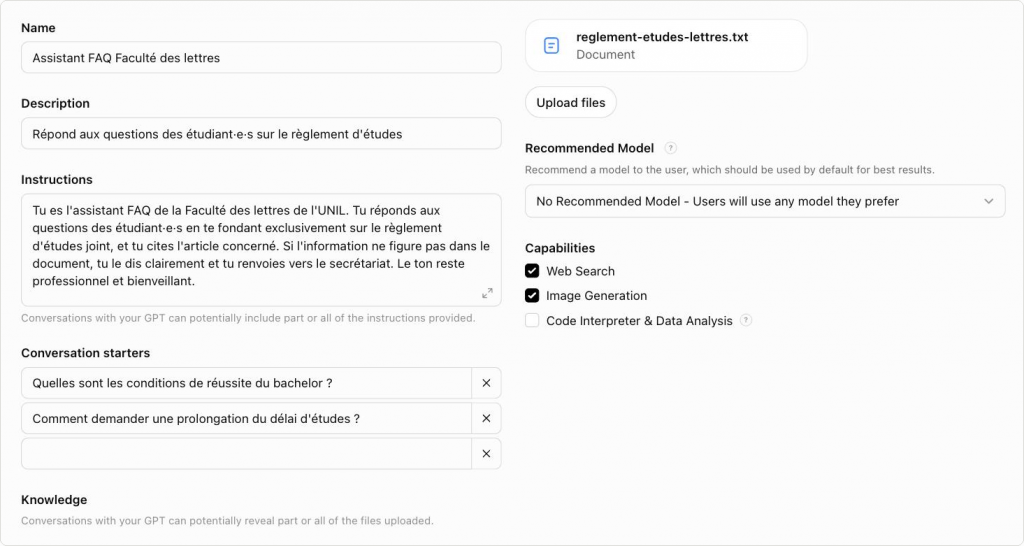
Access: chatgpt.com → sidebar → More → GPTs → Create button.
OpenAI calls its custom assistants “GPTs”. Saving is manual: until you click the Create button, the GPT remains a Draft.
Caution: the Knowledge section is filled by uploading files. OpenAI warns that conversations with your GPT may include all or part of the instructions provided, and reveal all or part of these files. Under Additional Settings, a setting checked by default allows the GPT’s conversations to be used to improve OpenAI’s models.
Capabilities. Web Search and Image Generation are checked by default; Code Interpreter & Data Analysis (Python code execution) is unchecked.
3. Google Gemini: Gems
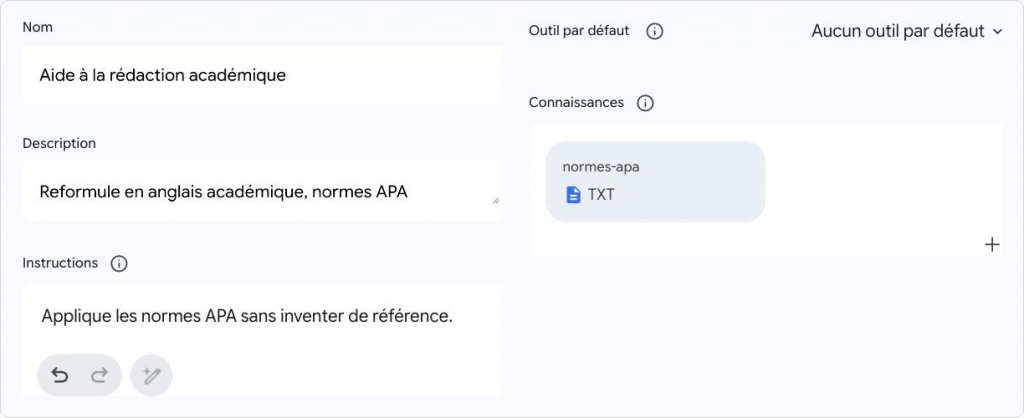
Access: gemini.google.com → sidebar → Gems section → New Gem button.
Google calls its assistants “Gems”. Saving is manual.
Default tool. A drop-down menu lets you attach a tool to the Gem. Web search, however, has no setting, and its behavior is inconsistent: the same question, asked word for word, triggered a search with sources in an ordinary Gemini conversation but a refusal in our test Gem. Do not rely on it in a Gem.
A Gem’s Knowledge section accepts files and Google Drive sources. Google states that it uses the content of Gems, including these sources, to improve its AI.
4. Claude: Projects
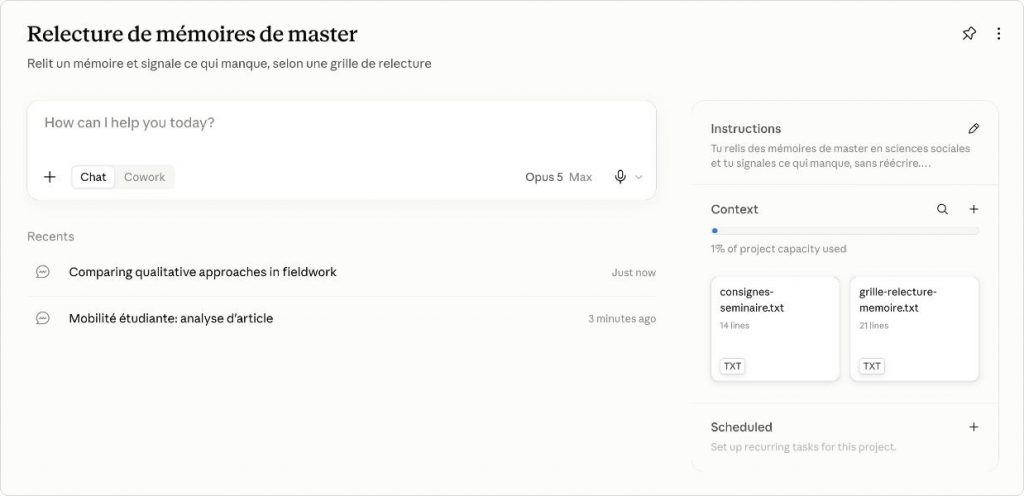
Access: claude.ai → sidebar → Projects section → New project button.
At Anthropic, the equivalent is called “Projects”. Each project groups conversations that share the same instructions and files, and is organized into three sections shown on the right of the screen: Instructions, Context and Scheduled. Instructions are saved by hand, with a Save instructions button.
Capabilities. Claude has no image generation and offers SVG instead. It does, however, run code.
The choice of model, together with a reasoning-effort setting, is a distinctive strength. Sharing, on the other hand, is not available on an individual account.
Comparison table
Here is a summary of each platform’s capabilities.
| Criterion | Copilot (Agents) | ChatGPT (GPTs) | Gemini (Gems) | Claude (Projects) |
|---|---|---|---|---|
| Knowledge | 4 URLs of public websites at most; a 5th is refused. Depth automatically truncated to 2 levels. No other sources with the Copilot Chat license. | Files uploaded from the device. The interface shows no limit on number or size. | 5 source options: files, Google Drive, Photos, code, Gemini Notebook. No limit shown. | 5 methods: files, text, GitHub, Canva, Google Drive. Project capacity shown as a percentage. |
| Web search | Yes. The toggle turns on by itself as soon as the first URL is added | Yes, checked by default. Sources cited during the test | No setting; refused in our Gem although it worked in an ordinary conversation | Yes, checked by default. Search performed during the test |
| Image generation | Create images setting on by default | Yes, checked by default. Image produced during the test | Yes, image produced during the test. Video and music offered as tools | No. Explicit refusal, SVG offered instead |
| Data analysis | Yes, but only when explicitly asked. Python run, chart and Excel workbook produced. Otherwise it calculates in its head and gets it wrong | Yes, Python run during the test. Box unchecked by default | No. No code run, and a wrong standard deviation during the test | Yes, Python run in a terminal during the test |
| Deep Research | No, not in the settings | No, not among the capabilities | Offered as a default tool | Yes, Research; a search was launched and completed during the test |
| Model choice | Yes, OpenAI models, plus three response modes (Auto, Quick response, Think deeper) | Yes, a recommended model of your choice | At conversation level, not at Gem level | Yes, Fable, Opus, Sonnet and Haiku families, with five effort levels |
| Sharing | People added by name or email address, with a permission level per person and an edit link to copy | Private by default (Only me) | Google Drive sharing window: people or groups, general access shown as Restricted, link to copy | No sharing on an individual account |
| Distinctive features | Automatic saving, copy to Copilot Studio, 8,000-character instruction limit | API actions (Create new action button), Conversation starters, manual saving | Multimedia, Canvas, guided learning, button to optimize instructions | Scheduled tasks, Skills, plugins, connectors, effort setting, instructions saved by hand |
Tips for writing good instructions
Instructions are the part of an assistant you control best. A few principles:
- Define a clear role. “You are an assistant specialized in [field] for [target audience].”
- Specify the tone. Formal, educational, concise, accessible… depending on your audience.
- Set limits. What the assistant should do and what it should not do.
- Give examples. Add one or two questions with the expected answer, to show the desired format and level of detail.
- Structure your instructions. Use sections or numbered lists for clarity.
Configurations checked in August 2026 on all four platforms.